
.png?w=2730&h=1535)
1. What's Included
- vSeeBox
- Bluetooth Remote
- HDMI Cable
- Power Adapter
- Wi-Fi Antenna
- User Manual
2. Basic Setup
Connect the power adapter to your vSeeBox.
Connect the vSeeBox to your TV using the HDMI cable.
Attach the Wi-Fi antenna if included with your model.
Insert two AAA batteries into the remote.
Turn on your TV and select the correct HDMI input.
3. Complete the Initial Setup
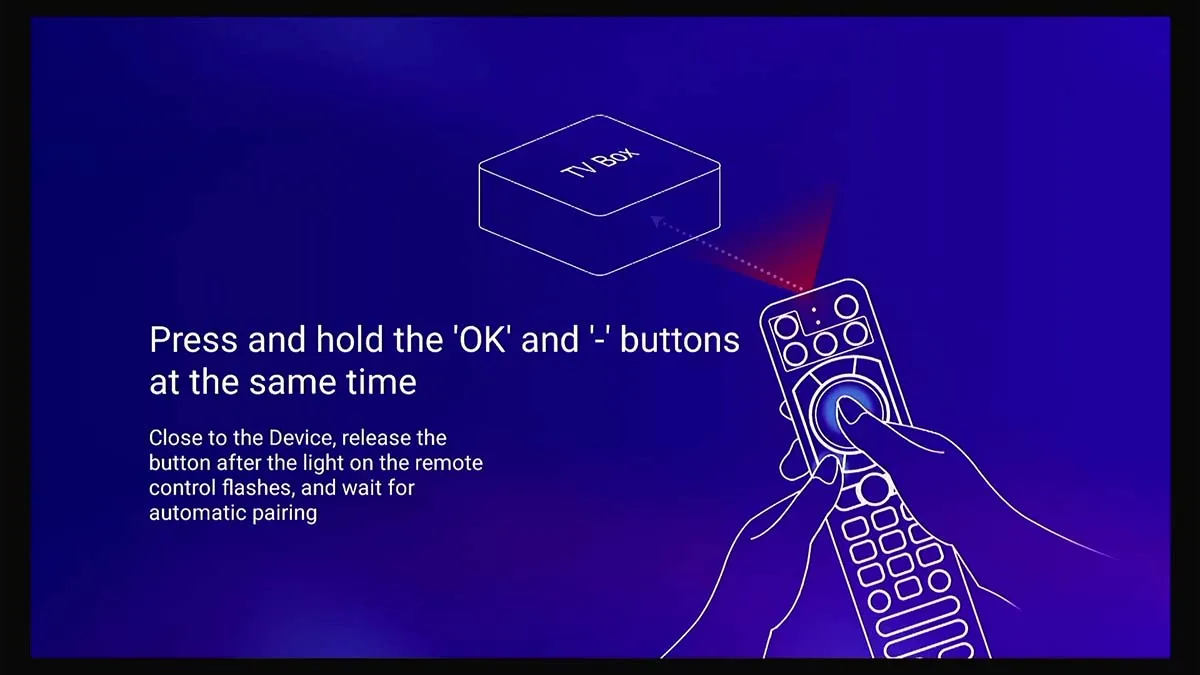
Step 1: Pair the Remote
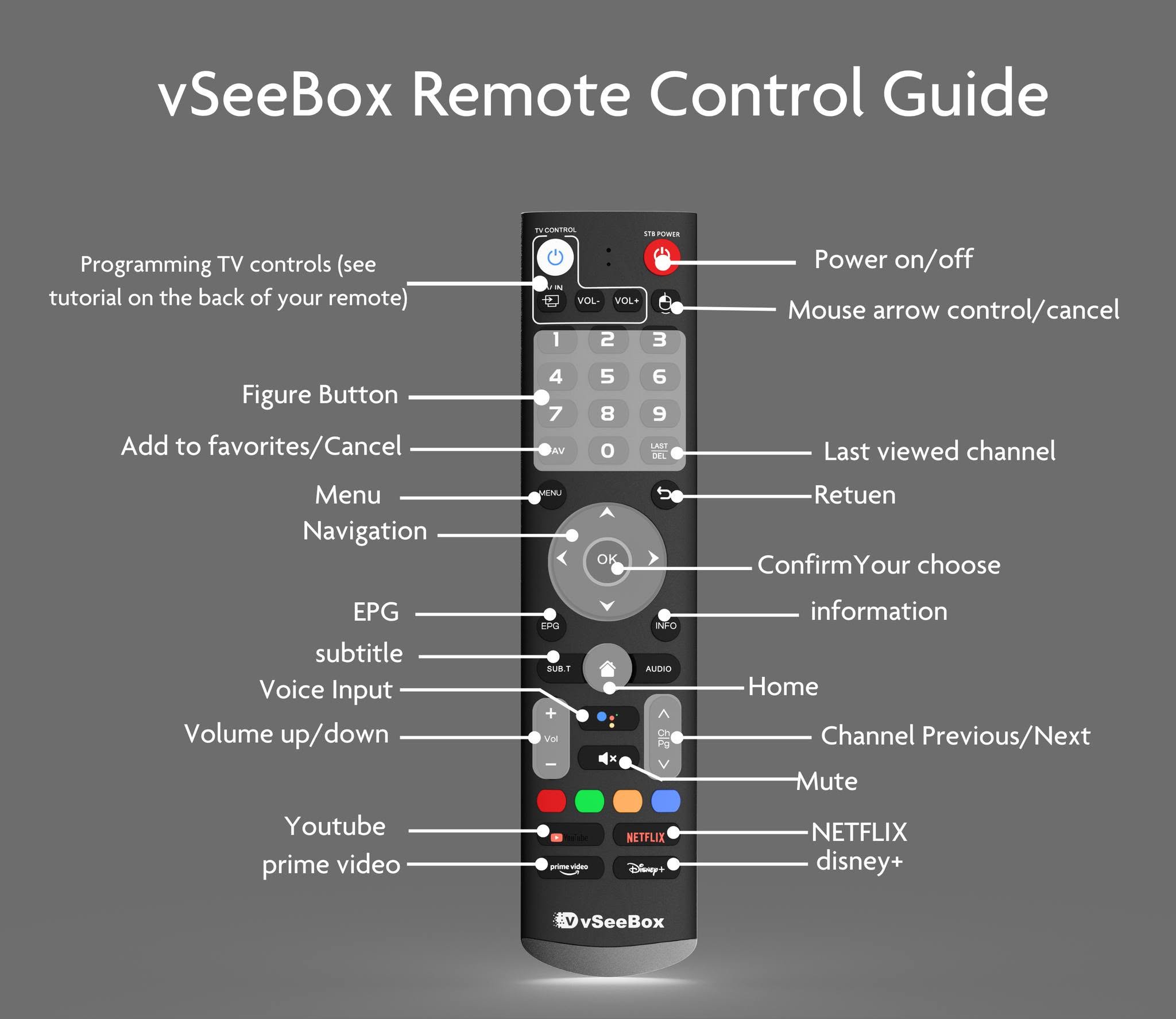
Hold( OK )+ (VOL- )until the indicator light flashes, then wait for the remote to connect.
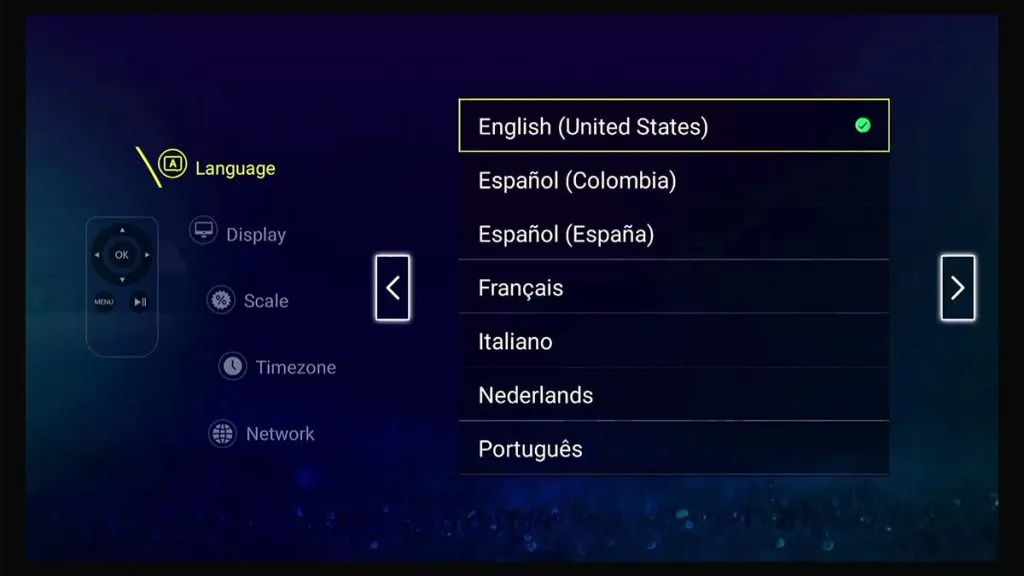
Step 2: Select Language
Choose your preferred language and continue.
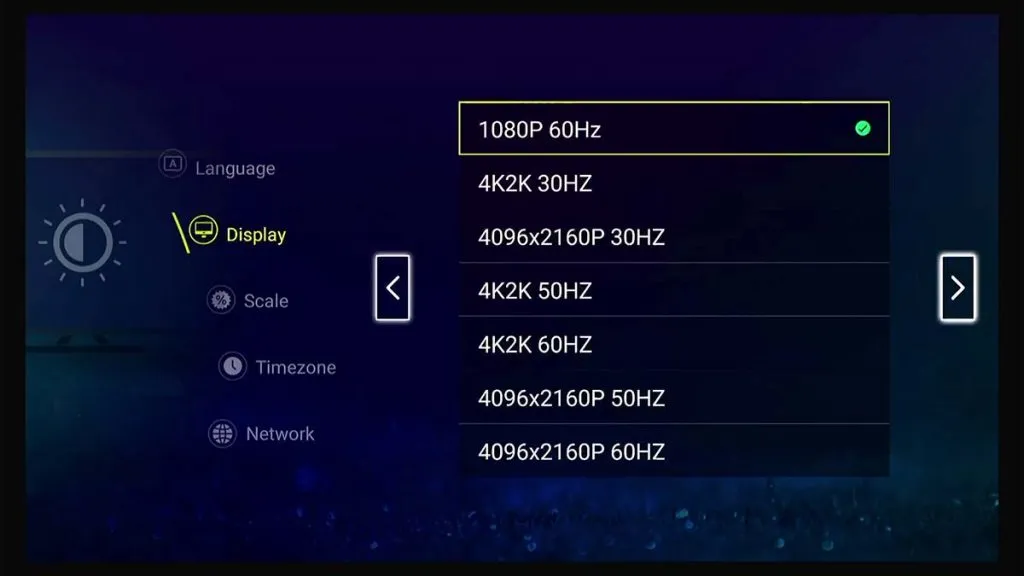
Step 3: Set Display Options
Choose the appropriate display settings for your TV.
(For HZ option, in general, the higher the refresh rate, the better the watching experience. When images are refreshed faster, the images will appear smoother to your eyes.)
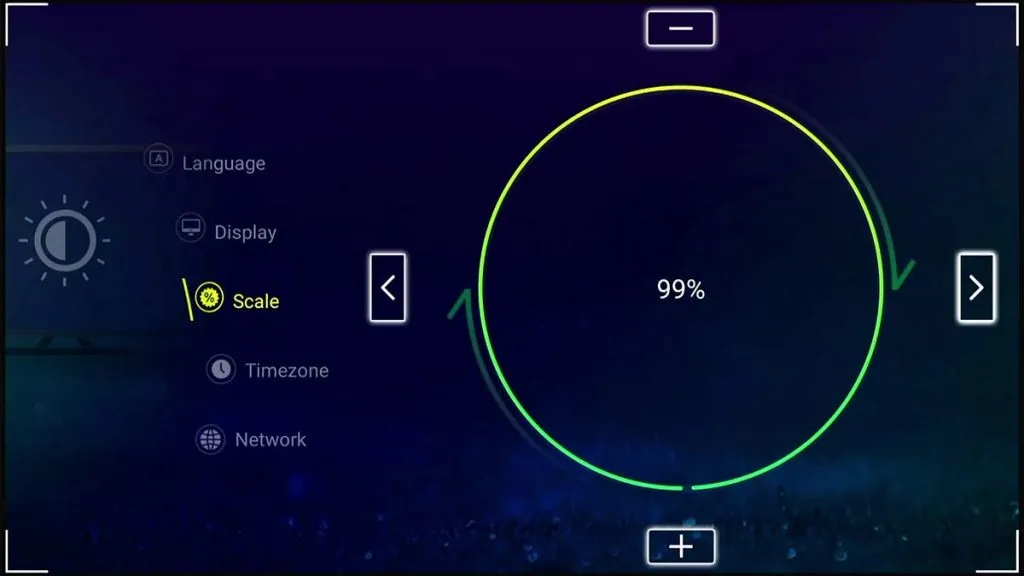
Step 4: Adjust screen ratio, then press [Right Arrow] to next
Step 5: Set Time Zone
Select your local time zone.
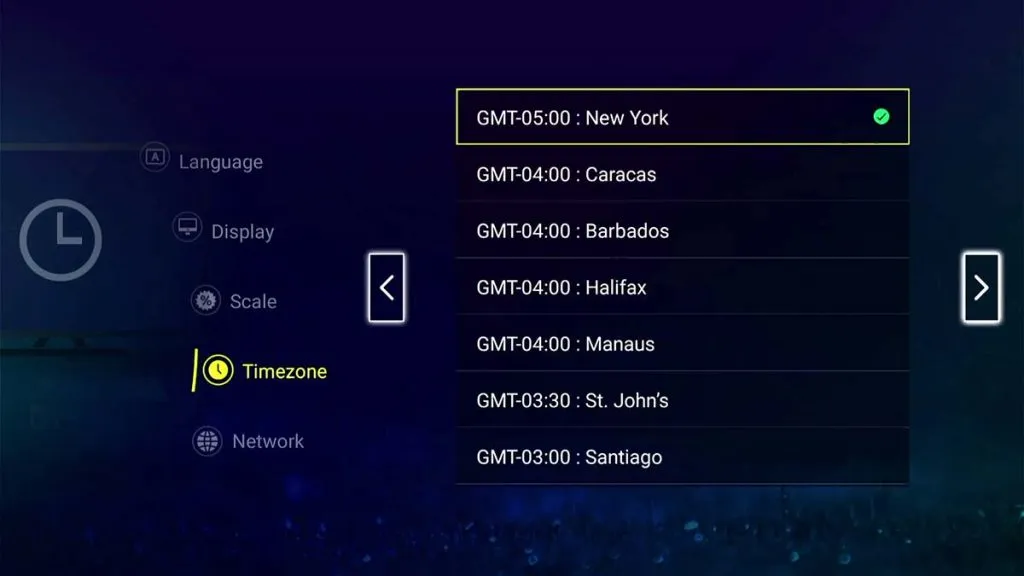
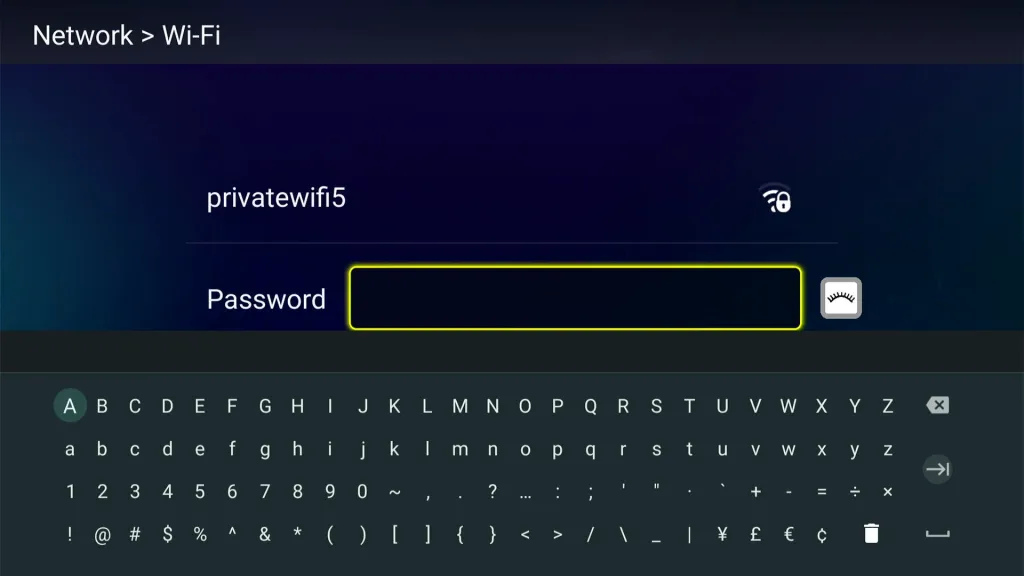
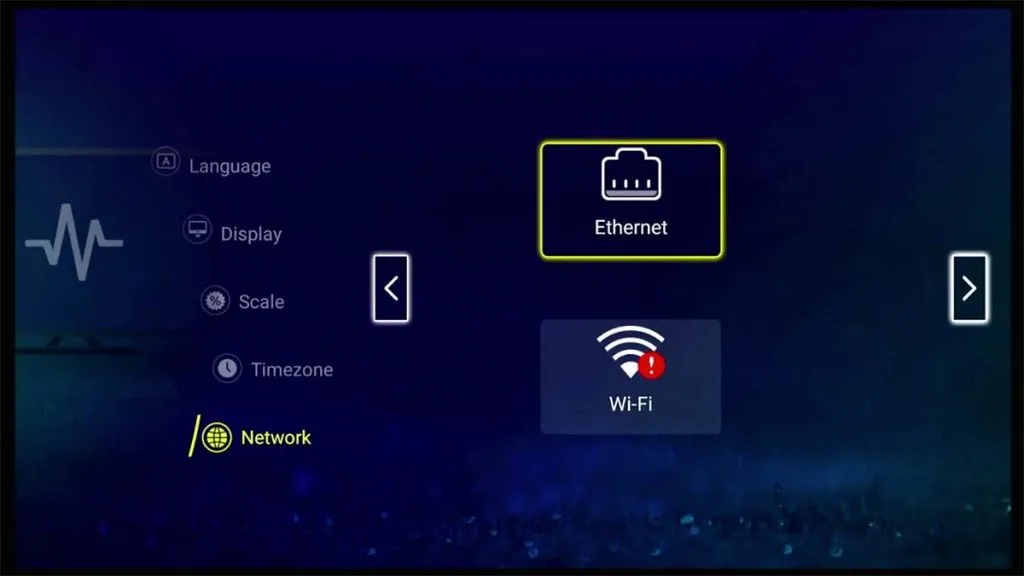
Step 6: Connect to the Internet
Wi-Fi:
Select your Wi-Fi network → enter the password → wait until it shows Connected.
Ethernet:
Connect the box to your router by Ethernet cable and the [x] will disappear on Ethernet option, then press [Right arrow] to finish setup;
4. Start Using Your vSeeBox
VOD — Browse available movies and TV content.
Picture Quality — During VOD playback, press Menu → Quality to select High, Normal, or Low when available.
Subtitles — During playback, open Menu → Subtitles.
Audio Track — Select Menu → Track when different audio tracks are available.
Frequently Asked Questions
Question:App or content not loading?
Answer:Restart the vSeeBox and check your internet connection. Some third-party apps may require their own accounts, subscriptions, or services.
Question:Why does vSeeBox keep buffering?
Answer:Does Your vSeeBox Keep Buffering? Wi-Fi vs Ethernet Explained