
This comprehensive guide provides step-by-step instructions to safely perform a Key Reset and System Recovery on your vSeeBox Android TV box. If your device is experiencing unresponsive apps, persistent software errors, boot loops, or performance issues, this system recovery process can help restore its original functionality and stability without needing technical expertise. Follow the clear operation guide to navigate the built-in recovery menu, select the appropriate reset options, and reboot your system. This essential troubleshooting resource is designed to help you regain control of your device, eliminate software glitches, and return your vSeeBox to its optimal working state. Always ensure to back up any important data before proceeding.
Preparation (vSeeBox, Pin, Power Supply) -Demonstration using vSeeBox V3 Plus
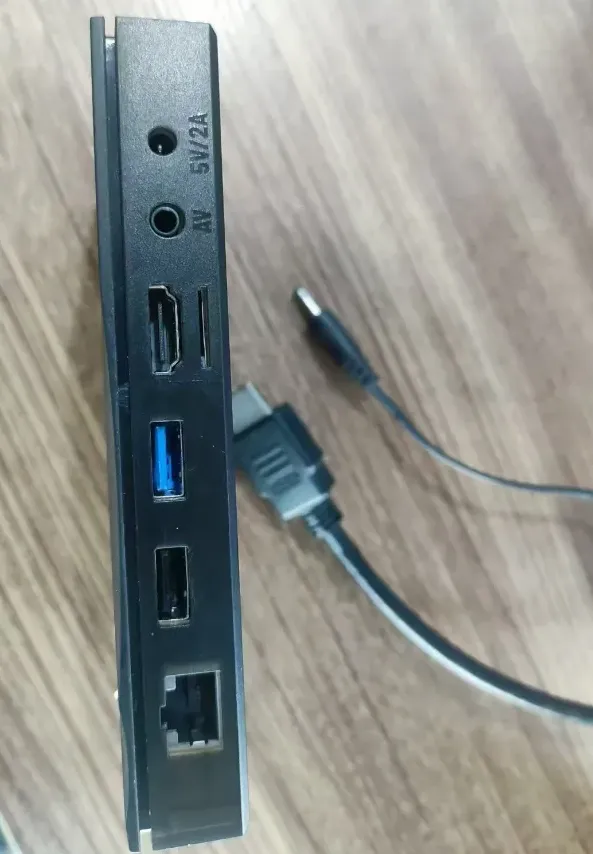
1、First, connect the HDMI cable and use the pin to press and hold the reset button on the AV interface.
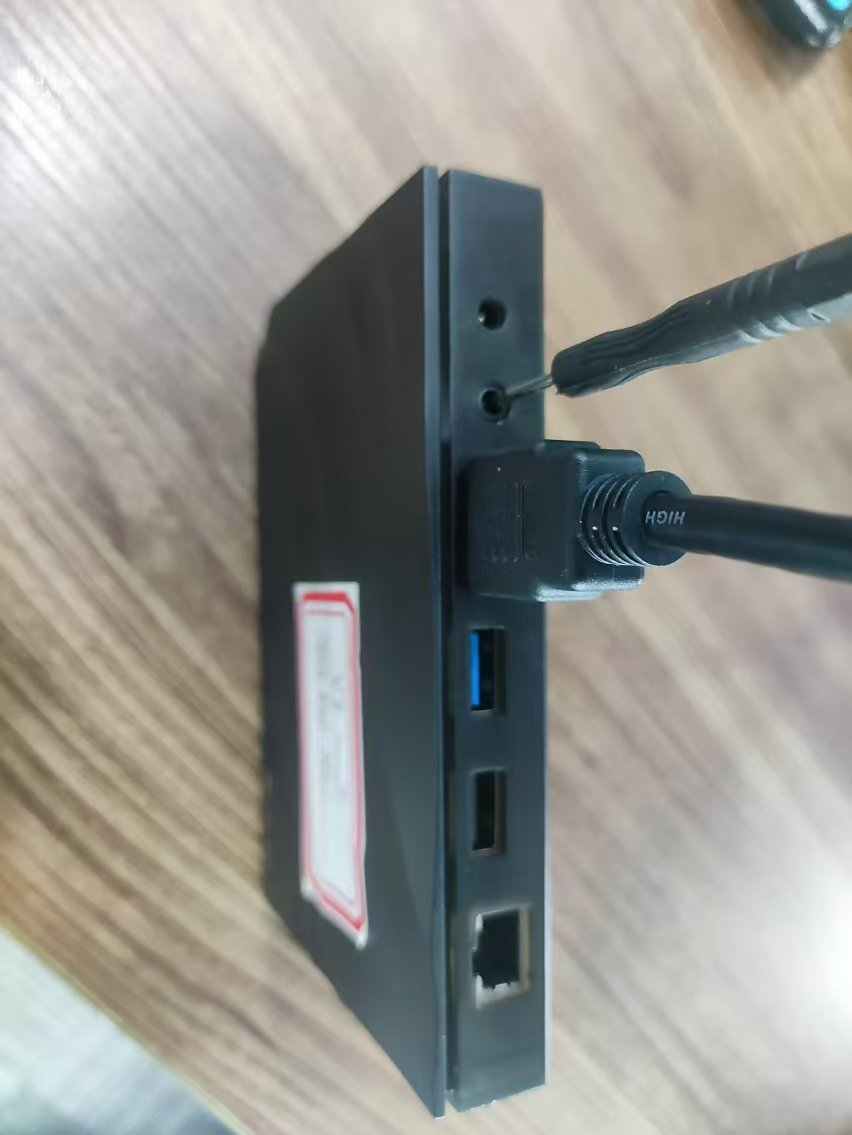
2、Connect the power supply.
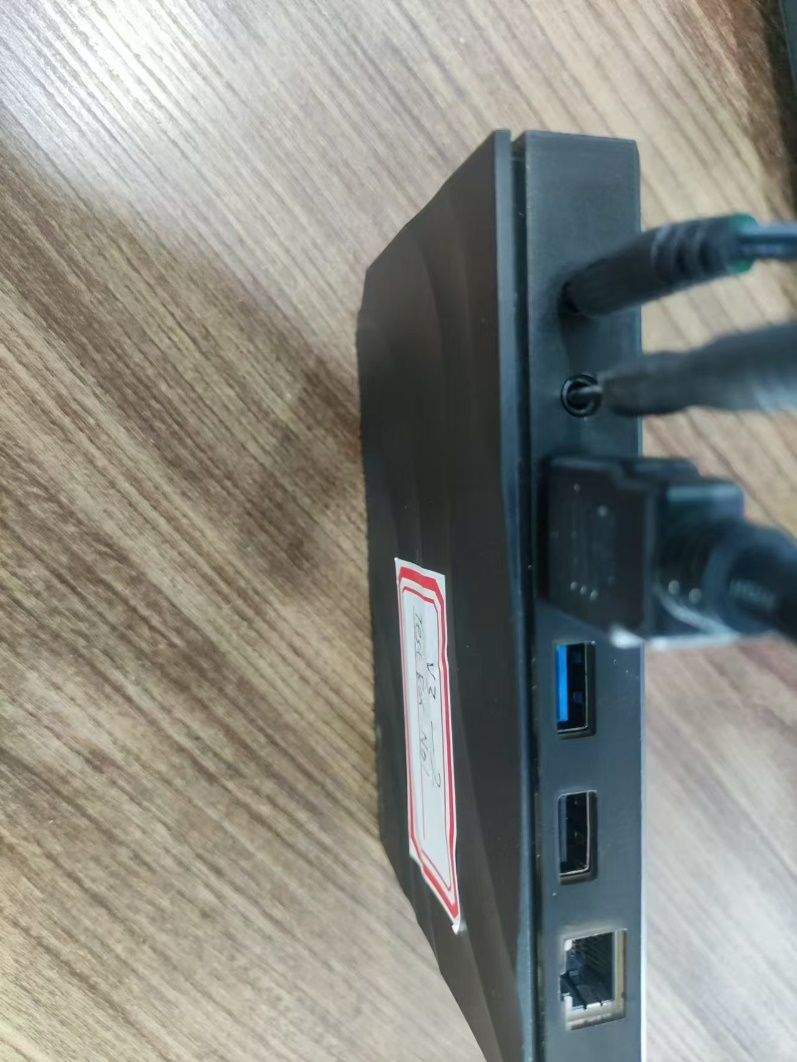
3、When the screen displays the boot logo (the first frame), release the pin and wait for twenty seconds. The box will enter Android Recovery. (If it gets stuck here, unplug the power and start the process over.)
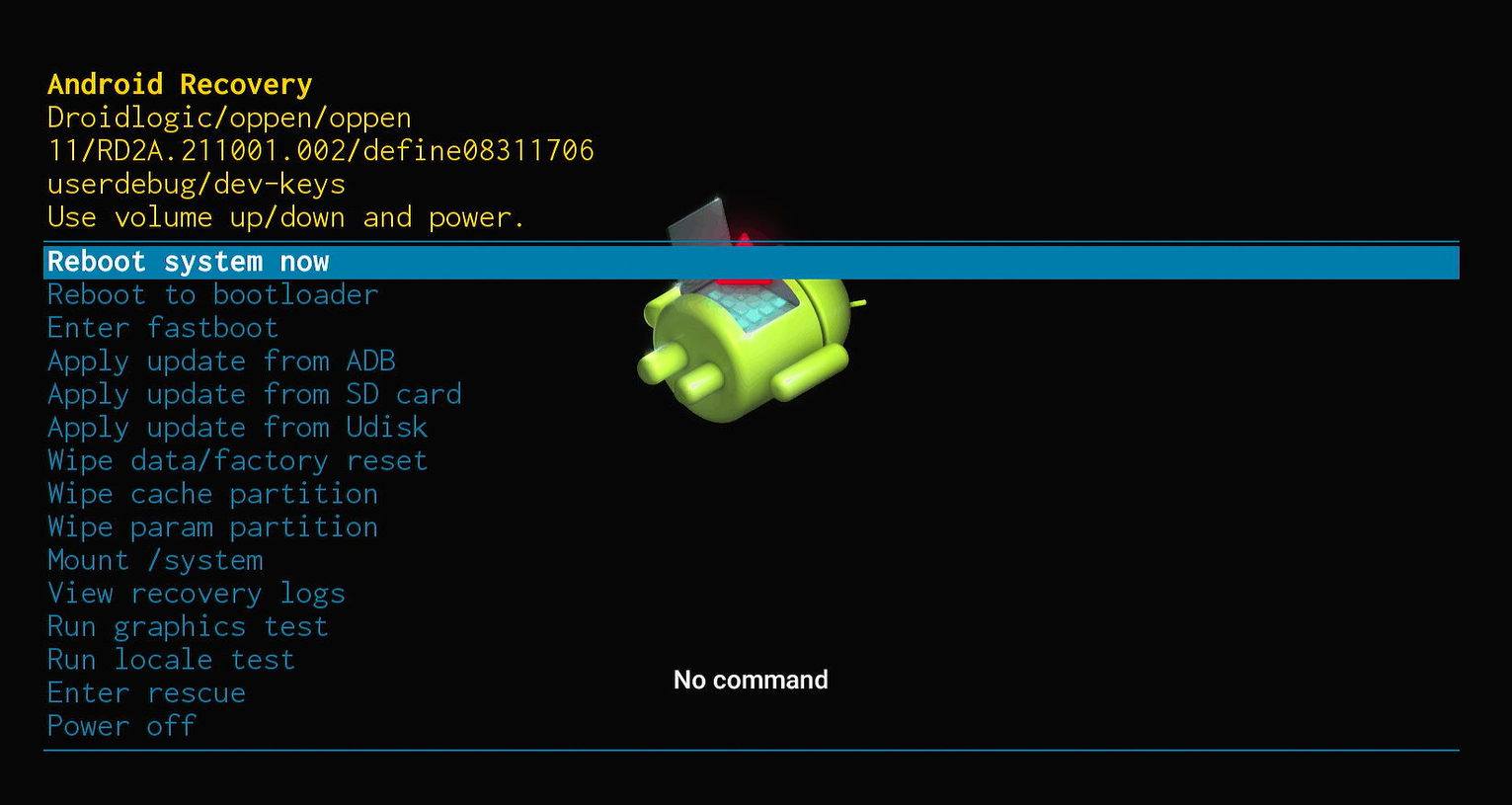
4、Once the box enters Android Recovery.
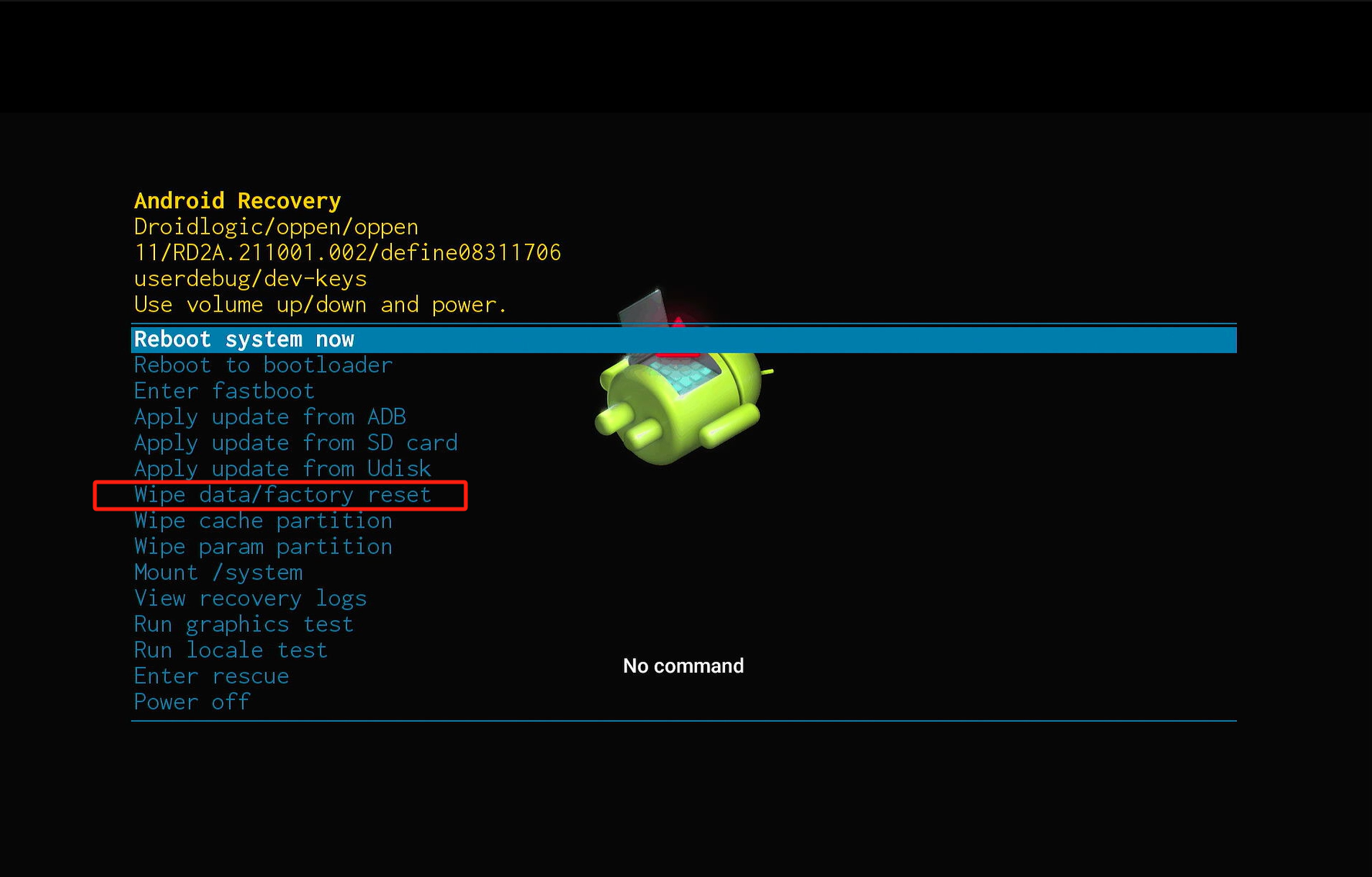
5、Select Wipe data/factory reset.
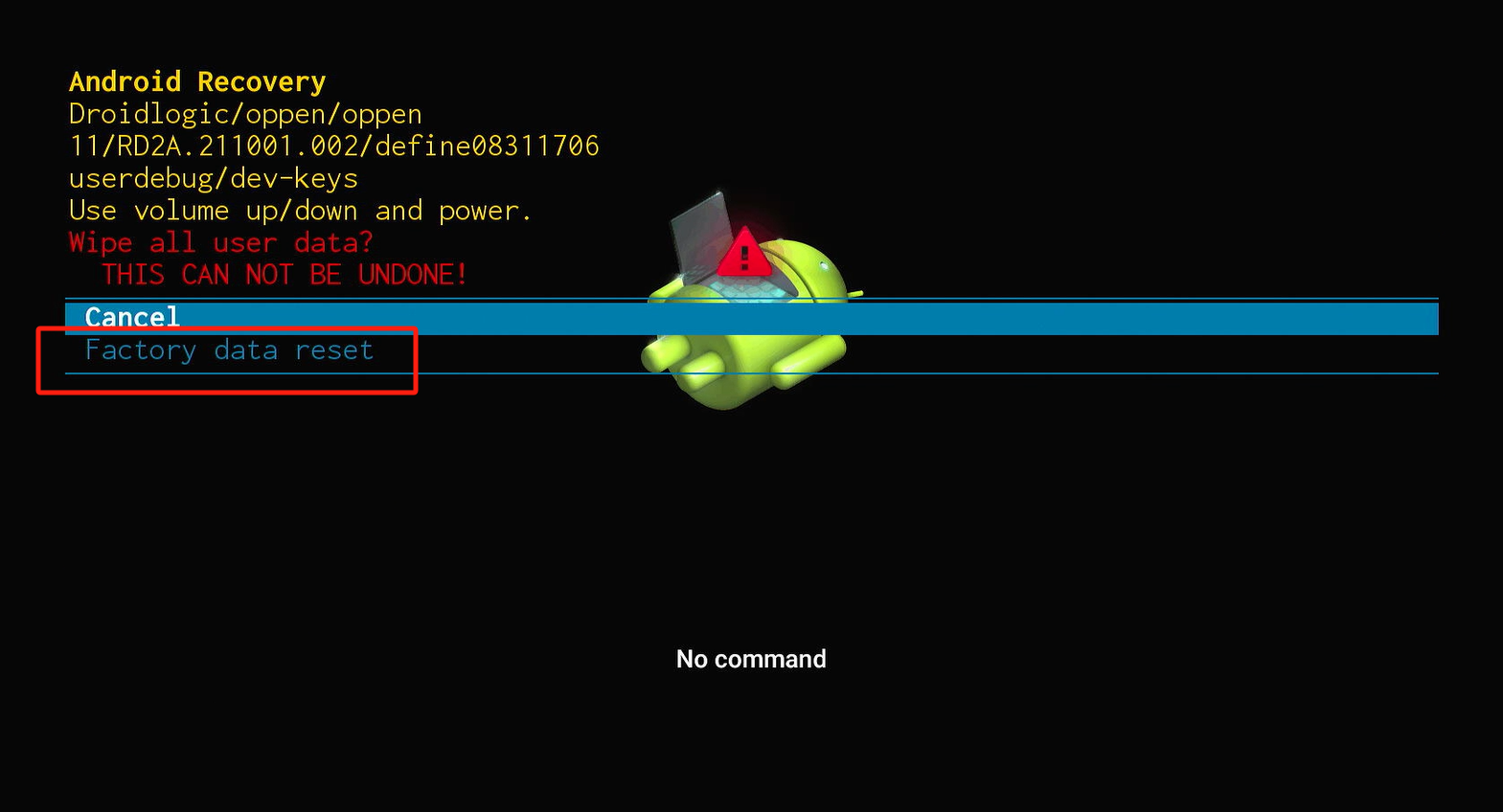
6、After entering Wipe all user data, select Factory data reset..
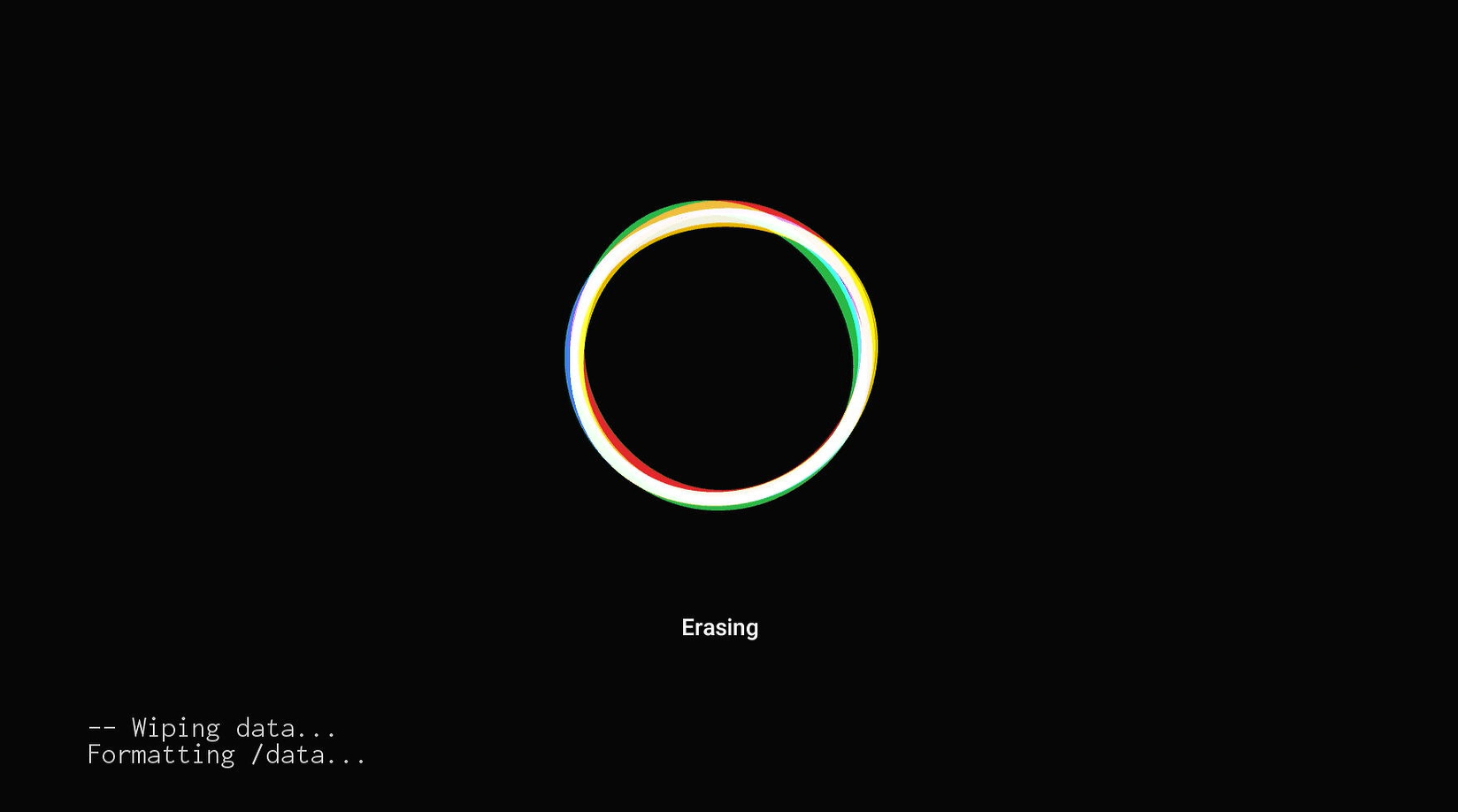
7、At this point, it will enter the data clearing state.
8、Once the reset is complete, it will return to Android Recovery. Select Reboot system now.
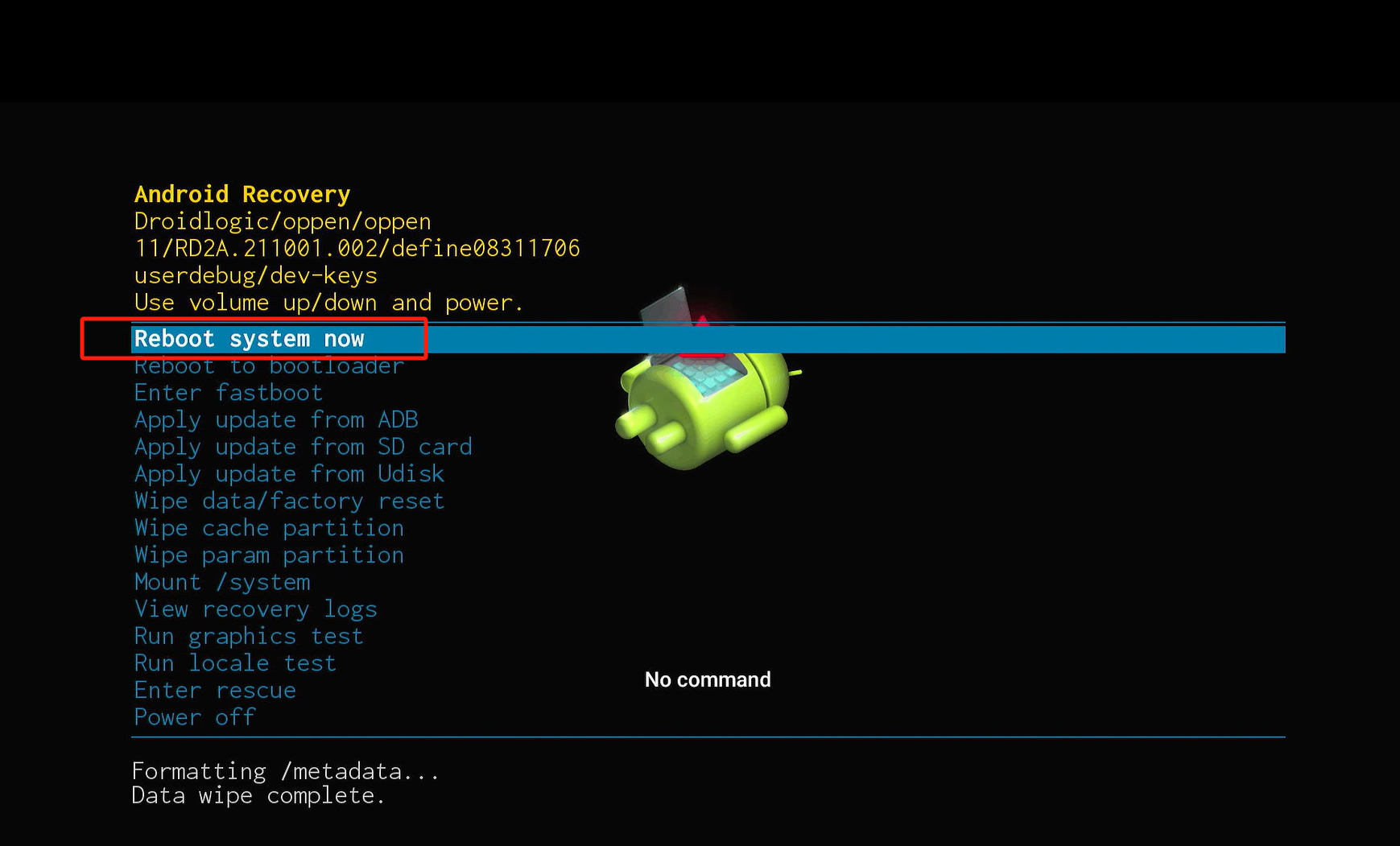
9、The box will restart. (lf it gets stuck during the boot process, unplug and reconnect the power to restart the box.).
By carefully following this vSeeBox Key Reset and System Recovery Operation Guide, you have successfully performed a critical troubleshooting procedure to revive your Android TV box. This process effectively clears software conflicts and corrupted data, providing a fresh start for your device's operating system. Your vSeeBox should now boot up normally with improved stability and performance.
If issues persist after the reset, please visit the support section at vseeboxhome.com for further advanced troubleshooting, firmware updates, or to contact our customer service team. Remember, regular system maintenance helps ensure the longevity and smooth operation of your streaming device. Enjoy your restored entertainment experience!