
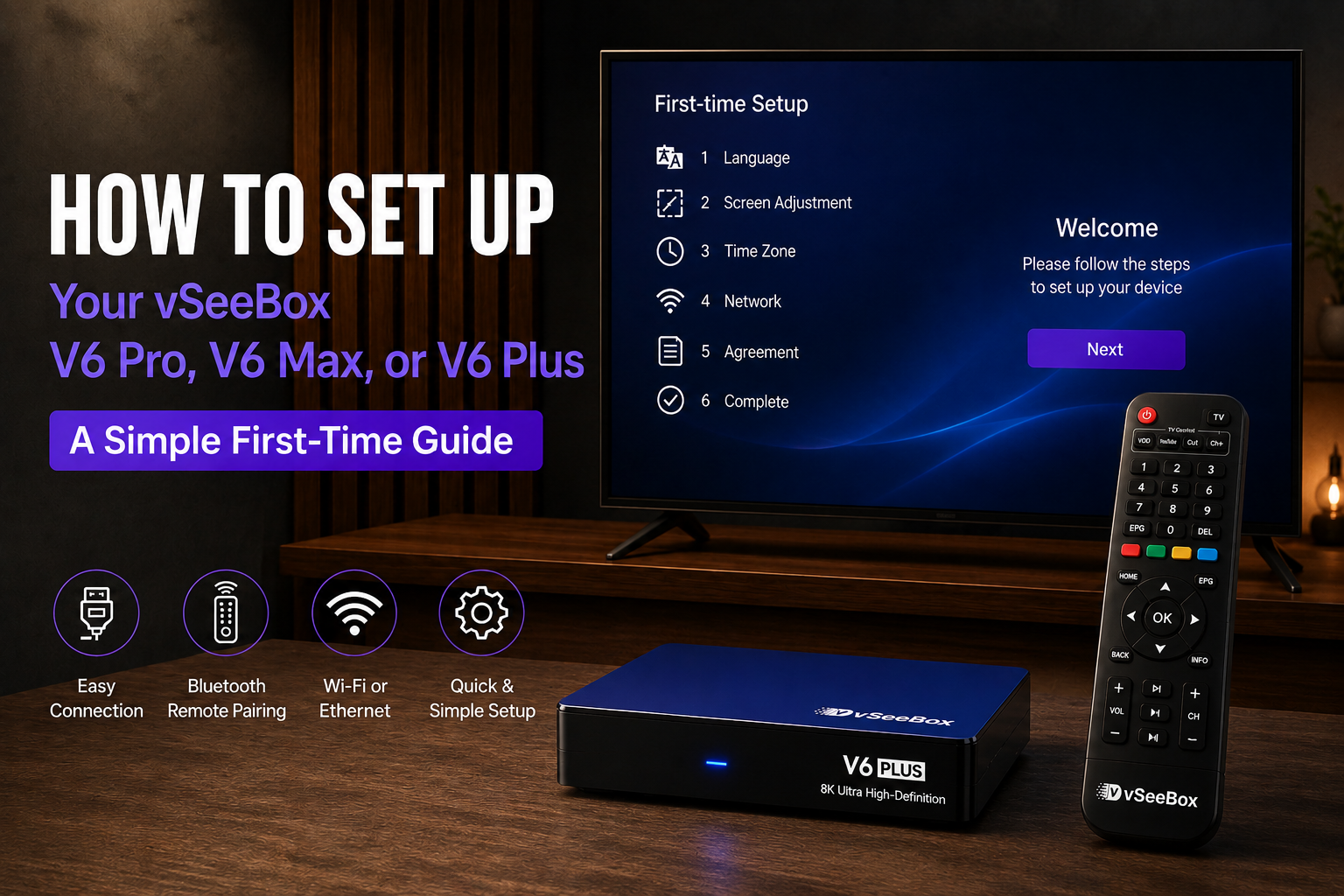
Setting up your vSeeBox for the first time is simple. Follow the steps below to connect your device, pair the remote, and complete the basic setup.

1. Connect Your vSeeBox
Connect the HDMI cable from your vSeeBox to an available HDMI port on your TV.
Then connect the power adapter to the vSeeBox and turn on your TV.
Tip: Select the correct HDMI input on your TV.
2. Prepare the Remote
Insert the batteries into the Bluetooth remote.
Turn on your vSeeBox and keep the remote close to the device.
3. Pair the Remote
When the pairing screen appears, follow the on-screen instructions.
For supported Bluetooth remotes, press and hold the required pairing buttons until the remote connects.
Tip: Keep the remote close to the vSeeBox during pairing.
4. Select Your Language
Choose your preferred language and select Next.
5. Adjust the Screen
Follow the on-screen instructions to adjust the display area.
Make sure the picture fits properly within your TV screen.
Select Next when finished.
6. Select Your Time Zone
Choose your local time zone.
Then select Next to continue.
7. Connect to the Internet
Choose Wi-Fi or Ethernet.
For Wi-Fi, select your network and enter the password.
For Ethernet, connect the network cable and select the available connection.
Tip: If your router is close to the TV, a wired connection can be a convenient option.
8. Accept the Agreement
Review the agreement displayed on the screen.
Select Agree and press OK to continue.
9. Complete the Setup
Follow the remaining on-screen instructions.
Once setup is complete, the vSeeBox home screen will appear.
Your vSeeBox is now ready for use.
Quick Setup Checklist
☐ HDMI connected
☐ Power connected
☐ Remote paired
☐ Language selected
☐ Screen adjusted
☐ Time zone selected
☐ Wi-Fi or Ethernet connected
☐ Agreement accepted
A Quick Tip Before You Start
Keep your remote, TV, and vSeeBox close together during the initial setup, and make sure your Wi-Fi password is ready before you begin.
PS:save on your vSeeBox purchase with code GOODLUCK at checkout
Frequently Asked Questions
Question:How do I pair my vseebox remote
Answer:Re-pair the RemoteHold both the OK and VOL- buttons on the remote until the indicator light flashes. Point the remote at the vSeeBox during pairing. If the issue persists, replace the batteries or perform a factory reset of the device
Question:How do I change the picture quality on vseebox
Answer:During VOD playback, press the Menu button on your remote, select Quality, then choose between High, Normal, Low. High quality supports up to 4K resolution.To adjust system resolution: Home → Settings → Device Preferences → Display & Sound